编辑器入门版的功能
在本页中,我们列出了 Editor Starter 中可用的功能。
🌐 On this page, we list the features that are available in the Editor Starter.
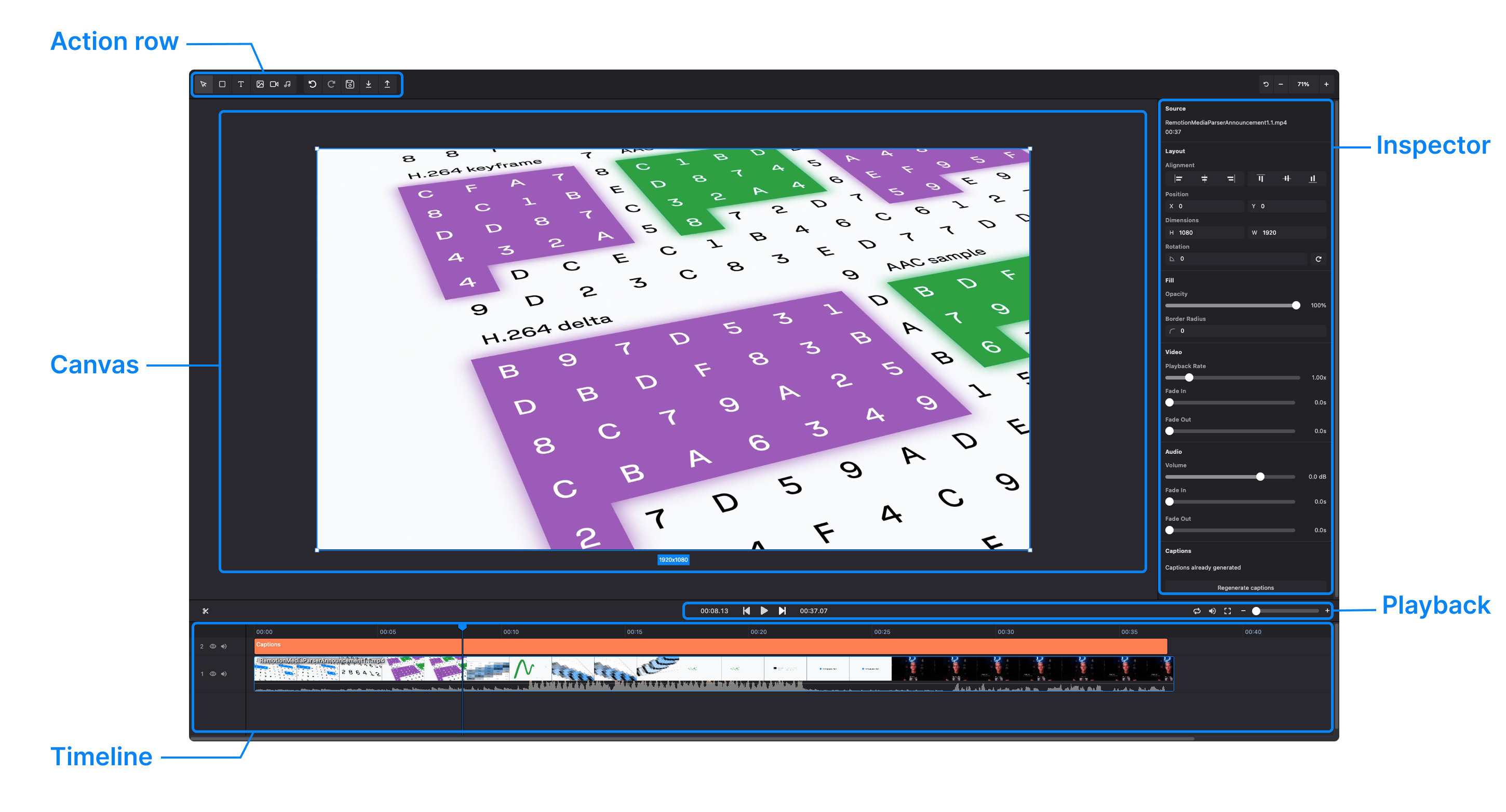
编辑器入门包括此图中所示的以下部分:
🌐 The Editor Starter consists of the following parts illustrated in this graphic:
功能标记
🌐 Feature flags
许多功能被隐藏在功能开关后面,可以通过在 src/editor/flags.ts 中切换开关来启用或禁用。
🌐 Many features are behind feature flags, which can be enabled or disabled by switching the flags in src/editor/flags.ts.
功能标志很有用:
🌐 Feature flags are useful:
- 禁用你不需要的功能
- 在代码库中搜索它们并查找功能的实现位置
- 要了解你在自己的项目中采用了哪些功能
在此页面上;如果一个功能有标志,你可以点击它以查看代码库中的使用情况。功能标志的链接仅在你购买了编辑器入门版(即你有权访问该仓库)并已登录 GitHub 时才会生效。
🌐 On this page; if a feature has a flag, you can click on it to see the usages in the codebase. The links for the feature flags will only work if you have bought the Editor Starter (i.e., you have access to the repository) and are logged into GitHub.
物品类型
🌐 Item types
我们默认支持以下物品类型:
🌐 We support the following item types by default:
- 图片
- 视频
- 音频
- 动图
- 文本
- 坚固
- 字幕
要了解有关它们的更多信息以及如何添加新项目类型,请参见:轨道、项目和资源
🌐 To learn more about them and how to add a new item type, see: Tracks, items and assets
操作行
🌐 Action row
操作行是顶部工具栏。
🌐 The action row is the top toolbar.
绘制实体工具
🌐 Draw solid tool
功能标志: FEATURE_DRAW_SOLID_TOOL
🌐 Feature flag: FEATURE_DRAW_SOLID_TOOL
显示一个按钮以将实心物品绘制到画布上。
🌐 Shows a button to draw a solid item onto the canvas.
添加文本工具
🌐 Add text tool
功能标志: FEATURE_CREATE_TEXT_TOOL
🌐 Feature flag: FEATURE_CREATE_TEXT_TOOL
显示一个按钮以将文本项添加到画布上。
🌐 Shows a button to add a text item onto the canvas.
导入资源工具
🌐 Import assets tool
功能标志: FEATURE_IMPORT_ASSETS_TOOL
🌐 Feature flag: FEATURE_IMPORT_ASSETS_TOOL
显示一个按钮,用于将资源导入画布。
🌐 Shows a button to import assets onto the canvas.
撤销按钮
🌐 Undo button
功能标志: FEATURE_UNDO_BUTTON
🌐 Feature flag: FEATURE_UNDO_BUTTON
显示一个按钮以撤销上一个操作。
🌐 Shows a button to undo the last action.
重做按钮
🌐 Redo button
功能标志: FEATURE_REDO_BUTTON
🌐 Feature flag: FEATURE_REDO_BUTTON
显示一个按钮以重做上一个操作。
🌐 Shows a button to redo the last action.
保存按钮
🌐 Save button
功能标志: FEATURE_SAVE_BUTTON
🌐 Feature flag: FEATURE_SAVE_BUTTON
显示一个按钮以保存项目的当前状态。
🌐 Shows a button to save the current state of the project.
下载状态按钮
🌐 Download state button
功能标志: FEATURE_DOWNLOAD_STATE
🌐 Feature flag: FEATURE_DOWNLOAD_STATE
显示一个按钮以下载项目的当前状态。
🌐 Shows a button to download the current state of the project.
加载状态按钮
🌐 Load state button
功能标志: FEATURE_LOAD_STATE
🌐 Feature flag: FEATURE_LOAD_STATE
显示一个按钮,用于加载已通过 FEATURE_DOWNLOAD_STATE 按钮下载的项目状态。
🌐 Shows a button to load a state of the project that has been downloaded with the FEATURE_DOWNLOAD_STATE button.
时间轴
🌐 Timeline
时间轴让你可以查看内容概览并浏览视频。
项目组织在“轨道”中,允许多个项目同时放置,并控制它们的重叠方式。
🌐 The timeline allows you to see a overview of the content and to scrub through the video.
Items are organized in "tracks", allowing multiple items to be placed at the same time and to allow for controlling how they overlap.
可拖动的播放头
🌐 Draggable playhead
按住并拖动时间刻度可以移动播放头,从而改变视频的位置。
如果将播放头拖到时间轴的边缘,时间轴将会滚动。
🌐 Pressing and dragging on the time ticks allows you to move the playhead and therefore the position of the video.
If you drag the playhead to the edge of the timeline, the timeline will scroll.
丢弃资源
🌐 Dropping assets
功能标志: FEATURE_DROP_ASSETS_ON_TIMELINE
🌐 Feature flag: FEATURE_DROP_ASSETS_ON_TIMELINE
可以将一个资源(图片、视频、音频、GIF)拖到时间轴上以导入它并添加一个新图层。 项目类型由 Remotion Media Parser 检测,并创建一个相应的项目。
🌐 An asset (image, video, audio, GIF) can be dropped on the timeline to import it and add a new layer.
The item type is detected by Remotion Media Parser and an appropriate item is created.
影片缩略图
🌐 Filmstrip thumbnails
功能标志: FEATURE_FILMSTRIP
🌐 Feature flag: FEATURE_FILMSTRIP
对于视频项目,预览图片显示在时间线上。
🌐 For video items, preview images are displayed on the timeline.
自动时长
🌐 Automatic duration
当导入资源时,项目会根据资源的长度自动分配适当的时长。视频和音频项目使用媒体时长,而图片和文本则使用默认时长。
🌐 When assets are imported, items are automatically assigned appropriate durations based on the asset's length. Video and audio items use the media duration, while images and text use default durations.
拖放
🌐 Drag and dropping
可以在时间线上拖动和重新定位项目。支持多选,允许一次拖动多个项目。拖动时,会有一个阴影覆盖显示移动项目的放置位置。
🌐 Items can be dragged and repositioned on the timeline. Multi-select is supported, allowing you to drag multiple items at once. A shadow overlay shows where the moving item is being placed when dragging.
延长句柄
🌐 Extend handles
你可以拖动项目的任一侧来延长或缩短该项目。
🌐 You can drag on either side of an item to extend or shrink the item.
最大修剪指示器
🌐 Max trim indicators
功能标志: FEATURE_MAX_TRIM_INDICATORS
🌐 Feature flag: FEATURE_MAX_TRIM_INDICATORS
在延长一个项目时,所选项目的最大修剪位置会以白色轮廓显示。
🌐 When extending an item, the maximum trim position is shown with a white outline of the selected item.
音频波形
🌐 Audio waveform
功能标志: FEATURE_WAVEFORM 和 FEATURE_AUDIO_WAVEFORM_FOR_VIDEO_ITEM
🌐 Feature flags: FEATURE_WAVEFORM and FEATURE_AUDIO_WAVEFORM_FOR_VIDEO_ITEM
视频和音频项目在时间轴底部显示波形。
🌐 Video and audio items display a waveform at the bottom of the timeline.
音量控制
🌐 Volume control
功能标志: FEATURE_TIMELINE_VOLUME_CONTROL
🌐 Feature flag: FEATURE_TIMELINE_VOLUME_CONTROL
音频和视频项目在时间轴波形上显示一个可拖动的音量线。垂直拖动可以以分贝调整音量,视觉指示器显示当前的音量水平。
🌐 Audio and video items display a draggable volume line on the timeline waveform. Dragging vertically adjusts the volume in decibels with a visual indicator showing the current level.
淡入淡出
🌐 Fade in and out
功能标志: FEATURE_AUDIO_FADE_CONTROL 和 FEATURE_VISUAL_FADE_CONTROL
🌐 Feature flags: FEATURE_AUDIO_FADE_CONTROL and FEATURE_VISUAL_FADE_CONTROL
项目支持不透明度淡入和淡出效果。音频和视频项目也支持淡入淡出。在项目的开始和结束处,当鼠标悬停时会出现可拖动的句柄,用于调整淡入淡出持续时间,并显示表示淡入淡出效果的可视曲线。
🌐 Items support opacity fade in and fade out effects. Audio and video items support fades as well. Draggable handles appear on hover at the start and end of items to adjust fade duration, with visual curves showing the fade effect.
拆分物品
🌐 Splitting items
功能标志: FEATURE_SPLIT_ITEM
🌐 Feature flag: FEATURE_SPLIT_ITEM
可以使用剪刀工具在当前播放头位置拆分项目。 拆分会创建两个独立的项目,同时正确处理新片段的淡入淡出效果和媒体起始时间。
🌐 Items can be split at the current playhead position using the scissors tool.
The split creates two separate items, properly handling fade effects and media start times for the new segments.
多选 / 框选
🌐 Multi-select / Marquee selection
功能标志: FEATURE_TIMELINE_MARQUEE_SELECTION
🌐 Feature flag: FEATURE_TIMELINE_MARQUEE_SELECTION
可以使用 Cmd/Ctrl+点击选择多个项目(或者使用 Shift+点击)将项目添加到选择中,或者使用所谓的框选来创建一个选择矩形,选中其范围内的所有项目。选中的项目可以一起移动、删除或编辑。
隐藏曲目
🌐 Hide track
功能标志: FEATURE_HIDE_TRACKS
🌐 Feature flag: FEATURE_HIDE_TRACKS
允许在时间线上隐藏特定的轨道。
🌐 Allows hiding a specific track on the timeline.
静音轨道
🌐 Mute track
功能标志: FEATURE_MUTE_TRACKS
🌐 Feature flag: FEATURE_MUTE_TRACKS
允许静音时间轴上的特定轨道。
🌐 Allows muting a specific track on the timeline.
滚动编辑
🌐 Rolling edits
功能标志: FEATURE_ROLLING_EDITS
🌐 Feature flag: FEATURE_ROLLING_EDITS
滚动编辑是一种视频编辑功能,它允许你调整两个相邻时间线项目之间的切点,而不改变它们的总组合时长或在时间线上的位置。
🌐 Rolling edits are a video editing feature that allows you to adjust the cut point between two adjacent timeline items without changing their total combined duration or position on the timeline.
播放时跟随播放头
🌐 Follow playhead while playing
功能标志: FEATURE_FOLLOW_PLAYHEAD_WHILE_PLAYING
🌐 Feature flag: FEATURE_FOLLOW_PLAYHEAD_WHILE_PLAYING
随着播放头向前移动,滚动时间轴。
🌐 Scrolls the timeline as the playhead moves forward.
时间线吸附
🌐 Timeline Snapping
功能标志: FEATURE_TIMELINE_SNAPPING
🌐 Feature flag: FEATURE_TIMELINE_SNAPPING
启用时间轴上的吸附功能,使项目在拖动时能够与其他项目、播放头或网格位置对齐。这简化了定位和过渡。通过点击磁铁图标来激活吸附。
🌐 Enables snapping on the timeline, allowing items to align with other items, the playhead, or grid positions when dragged. This simplifies positioning and transitions. Activate snapping by clicking the magnet icon.
检查器
🌐 Inspector
在屏幕的右侧,显示了一个检查器,它允许编辑所选项目的属性。
提供以下功能。
🌐 On the right side of the screen, an inspector is displayed which allows for editing the properties of the selected item.
The following features are available.
组件检查器
🌐 Composition inspector
如果未选择任何项目,将显示整个合成的控件(即合成检查器):
🌐 If no item is selected, controls for the whole composition are displayed (i.e., composition inspector):
- 设置尺寸
- 触发渲染
交换维度按钮
🌐 Swap dimensions button
功能标志: FEATURE_SWAP_COMPOSITION_DIMENSIONS_BUTTON
🌐 Feature flag: FEATURE_SWAP_COMPOSITION_DIMENSIONS_BUTTON
显示一个按钮以交换合成的宽度和高度(即在合成检查器中)。
🌐 Shows a button to swap the width and height of the composition (i.e., within the composition inspector).
来源信息
🌐 Source info
功能标志: FEATURE_SOURCE_CONTROL
🌐 Feature flag: FEATURE_SOURCE_CONTROL
显示所选项目关联的资源的信息,例如该资源的文件名、文件大小、上传进度和下载进度。
🌐 Shows information about the associated asset of a selected item, such as the file name, file size, upload progress and download progress of that asset.
图层对齐
🌐 Layer alignment
功能标志: FEATURE_ALIGNMENT_CONTROL
🌐 Feature flag: FEATURE_ALIGNMENT_CONTROL
用于将项目对齐到左、垂直居中、右、上、水平居中、下的按钮。
🌐 Buttons for aligning the item to the; left, vertical center, right, top, horizontal center, bottom.
位置控制
🌐 Position controls
功能标志: FEATURE_POSITION_CONTROL
🌐 Feature flag: FEATURE_POSITION_CONTROL
允许设置项目的精确 X 和 Y 位置。
🌐 Allows setting the precise X and Y position of the item.
尺寸控制
🌐 Dimensions controls
功能标志: FEATURE_DIMENSIONS_CONTROL
🌐 Feature flag: FEATURE_DIMENSIONS_CONTROL
允许设置项目的宽度和高度。
🌐 Allows setting the width and height of the item.
裁剪控制
🌐 Cropping controls
功能标志: FEATURE_CROP_CONTROL
🌐 Feature flag: FEATURE_CROP_CONTROL
允许设置该项目的裁剪值。
🌐 Allows setting the crop values of the item.
保持纵横比控制
🌐 Keep Aspect ratio control
功能标志: FEATURE_KEEP_ASPECT_RATIO_CONTROL
🌐 Feature flag: FEATURE_KEEP_ASPECT_RATIO_CONTROL
允许设置项目的保持纵横比。
🌐 Allows setting the keep aspect ratio of the item.
边框圆角控制
🌐 Border radius control
功能标志: FEATURE_BORDER_RADIUS_CONTROL
🌐 Feature flag: FEATURE_BORDER_RADIUS_CONTROL
允许设置项目的边框圆角。在用户界面中,边框圆角被命名为“圆角半径”。
🌐 Allows setting the border radius of the item. In the UI, the border radius is named "Corner Radius".
不透明度控制
🌐 Opacity control
功能标志: FEATURE_OPACITY_CONTROL
🌐 Feature flag: FEATURE_OPACITY_CONTROL
允许设置项目的不透明度。
🌐 Allows setting the opacity of the item.
文本对齐
🌐 Text alignment
功能标志: FEATURE_TEXT_ALIGNMENT_CONTROL
🌐 Feature flag: FEATURE_TEXT_ALIGNMENT_CONTROL
允许设置项目的文本对齐方式(左、居中、右)。
🌐 Allows setting the text alignment of the item (left, center, right).
字体系列
🌐 Font family
功能标志: FEATURE_FONT_FAMILY_CONTROL
🌐 Feature flag: FEATURE_FONT_FAMILY_CONTROL
允许设置项目的字体系列。
🌐 Allows setting the font family of the item.
字体系列预览
🌐 Font family preview
功能标志: FEATURE_FONT_FAMILY_DROPDOWN_RENDER_IN_FONT
🌐 Feature flag: FEATURE_FONT_FAMILY_DROPDOWN_RENDER_IN_FONT
字体系列下拉菜单中的每一项都是以该字体本身显示的。
🌐 Each item in the font family dropdown is rendered in the font itself.
悬停以预览字体系列
🌐 Hover to preview font family
功能标志: FEATURE_CHANGE_FONT_FAMILY_ON_HOVER
🌐 Feature flag: FEATURE_CHANGE_FONT_FAMILY_ON_HOVER
当鼠标悬停在字体系列下拉菜单中的某一项时,画布中的文本项会更新,显示如果选择悬停的项时文本会是什么样子的预览。
🌐 When hovering over an item in the font family dropdown, the text item in the canvas updates with a preview of what the item would look like if it the hovered item was selected.
字体样式
🌐 Font style
功能标志: FEATURE_FONT_STYLE_CONTROL
🌐 Feature flag: FEATURE_FONT_STYLE_CONTROL
允许为文本和标题项目设置字体样式、变体和粗细(正常、斜体、加粗等)。在悬停选项时包括实时预览。
🌐 Allows setting the font style variant and weight (normal, italic, bold, etc.) for text and caption items. Includes live preview when hovering over options.
悬停以预览字体样式
🌐 Hover to preview font style
功能标志: FEATURE_CHANGE_FONT_STYLE_ON_HOVER
🌐 Feature flag: FEATURE_CHANGE_FONT_STYLE_ON_HOVER
当鼠标悬停在字体样式下拉菜单中的某一项时,画布中的文本项会更新,显示如果选择悬停的项目文本会是什么样子的预览。
🌐 When hovering over an item in the font style dropdown, the text item in the canvas updates with a preview of what the item would look like if it the hovered item was selected.
字体大小
🌐 Font size
功能标志: FEATURE_TEXT_FONT_SIZE_CONTROL
🌐 Feature flag: FEATURE_TEXT_FONT_SIZE_CONTROL
允许设置项目的字体大小。
🌐 Allows setting the font size of the item.
文本值
🌐 Text value
功能标志: FEATURE_TEXT_VALUE_CONTROL
🌐 Feature flag: FEATURE_TEXT_VALUE_CONTROL
允许通过检查器中的文本区域编辑文本内容。文本区域会根据内容和对齐设置自动调整大小。
🌐 Allows editing the text content via a text area in the inspector. Text area automatically resizes based on content and alignment settings.
颜色
🌐 Color
功能标志: FEATURE_COLOR_CONTROL
🌐 Feature flag: FEATURE_COLOR_CONTROL
为文本、实心和标题项提供颜色选择器。
🌐 Provides a color picker for text, solid, and caption items.
旋转
🌐 Rotation
功能标志: FEATURE_ROTATION_CONTROL 和 FEATURE_ROTATE_90_DEGREES_BUTTON
🌐 Feature flags: FEATURE_ROTATION_CONTROL and FEATURE_ROTATE_90_DEGREES_BUTTON
允许更改物品的旋转。
🌐 Allows changing the rotation of the item.
FEATURE_ROTATE_90_DEGREES_BUTTON 标志显示一个按钮,用于快速将项目顺时针旋转 90 度。
🌐 The FEATURE_ROTATE_90_DEGREES_BUTTON flag displays a button to quickly rotate the item by 90 degrees clockwise.
行高
🌐 Line height
功能标志: FEATURE_TEXT_LINE_HEIGHT_CONTROL
🌐 Feature flag: FEATURE_TEXT_LINE_HEIGHT_CONTROL
允许设置文本和标题项目的行高。
接受从 0.5 到 5.0 的值,修改时会自动重新排版文本。
🌐 Allows setting the line height for text and caption items.
Accepts values from 0.5 to 5.0 with automatic text relayout when changed.
字间距
🌐 Letter spacing
功能标志: FEATURE_TEXT_LETTER_SPACING_CONTROL
🌐 Feature flag: FEATURE_TEXT_LETTER_SPACING_CONTROL
允许设置文本和字幕项的字母间距。 支持从 -10px 到 50px 的数值,并在更改时自动重新布局文本。
🌐 Allows setting the letter spacing for text and caption items.
Supports values from -10px to 50px with automatic text relayout when changed.
文字方向
🌐 Text direction
功能标志: FEATURE_TEXT_DIRECTION_CONTROL
🌐 Feature flag: FEATURE_TEXT_DIRECTION_CONTROL
提供从左到右(LTR)和从右到左(RTL;如阿拉伯语)的文本方向控制。
在创建新的文本项目时会自动检测文本方向,但可以手动覆盖。
🌐 Provides left-to-right (LTR) and right-to-left (RTL; like Arabic) text direction controls.
Text direction is automatically detected when creating new text items, but can be manually overridden.
播放速度
🌐 Playback speed
功能标志: FEATURE_PLAYBACKRATE_CONTROL
🌐 Feature flag: FEATURE_PLAYBACKRATE_CONTROL
允许设置视频、音频和GIF项目的播放速度。
支持从0.25倍到5倍的速度,并根据新的播放速度自动调整时长。
🌐 Allows setting the playback rate for video, audio, and GIF items.
Supports rates from 0.25x to 5x with automatic duration adjustment based on the new playback speed.
音量
🌐 Volume
功能标志: FEATURE_VOLUME_CONTROL
🌐 Feature flag: FEATURE_VOLUME_CONTROL
为音频和视频项目提供音量滑块,可基于分贝进行调节。
显示与原始音频的当前分贝差异。
🌐 Provides a volume slider for audio and video items with decibel-based adjustment.
Shows the current dB difference to the original audio.
淡入淡出
🌐 Fade in and out
功能标志: FEATURE_AUDIO_FADE_CONTROL 和 FEATURE_VIDEO_FADE_CONTROL
🌐 Feature flags: FEATURE_AUDIO_FADE_CONTROL and FEATURE_VIDEO_FADE_CONTROL
为音频和视频项目提供精确的淡入和淡出时长控制。 允许以秒为单位设置淡入淡出时间,并可直观预览淡入淡出效果。
🌐 Provides precise controls for fade in and fade out durations for audio and video items.
Allows setting fade times in seconds with visual preview of the fade effect.
字幕标记
🌐 Caption tokens
功能标志: FEATURE_TOKENS_CONTROL
🌐 Feature flag: FEATURE_TOKENS_CONTROL
一个允许纠正生成字幕的标记的控件。
🌐 A control allowing the correction of the tokens of generated captions.
字幕页时长
🌐 Caption page duration
功能标志: FEATURE_CAPTIONS_PAGE_DURATION_CONTROL
🌐 Feature flag: FEATURE_CAPTIONS_PAGE_DURATION_CONTROL
一个用于设置字幕单页显示时长的控件。
🌐 A control allowing to set the duration of one page of captions.
字幕文本行
🌐 Lines of caption text
功能标志: FEATURE_TEXT_MAX_LINES_CONTROL
🌐 Feature flag: FEATURE_TEXT_MAX_LINES_CONTROL
限制文本项中可以显示的字幕文本行数。
🌐 Limits the number of lines of caption text that can be displayed in a text item.
字幕高亮颜色
🌐 Caption highlight color
功能标志: FEATURE_CAPTIONS_HIGHLIGHT_COLOR_CONTROL
🌐 Feature flag: FEATURE_CAPTIONS_HIGHLIGHT_COLOR_CONTROL
一个控件,用于设置字幕页面中当前正在发音的单词的颜色。
🌐 A control allowing to set the color of the currently spoken word in a caption page.
文字背景
🌐 Text background
功能标志: FEATURE_TEXT_BACKGROUND_CONTROL
🌐 Feature flag: FEATURE_TEXT_BACKGROUND_CONTROL
一个允许设置文本项背景颜色的控件。
🌐 A control allowing to set the background color of a text item.
文本背景水平内边距
🌐 Text background horizontal padding
功能标志: FEATURE_TEXT_BACKGROUND_HORIZONTAL_PADDING_CONTROL
🌐 Feature flag: FEATURE_TEXT_BACKGROUND_HORIZONTAL_PADDING_CONTROL
一个控件,用于设置文本项背景的水平内边距。
🌐 A control allowing to set the horizontal padding of the background of a text item.
文本背景边框半径
🌐 Text background border radius
功能标志: FEATURE_TEXT_BACKGROUND_BORDER_RADIUS_CONTROL
🌐 Feature flag: FEATURE_TEXT_BACKGROUND_BORDER_RADIUS_CONTROL
一个控件,用于设置文本项背景的边框半径。
🌐 A control allowing to set the border radius of the background of a text item.
回放
🌐 Playback
播放 / 暂停按钮
🌐 Play / Pause button
一个中央播放/暂停按钮,用于开始或停止视频播放。它也可以使用键盘上的 空格 键进行控制。
当前时间指示器
🌐 Current time indicator
显示当前播放头位置的时间码格式(MM:SS.FF,其中 FF 是帧号)。
🌐 Displays the current playhead position in timecode format (MM:SS.FF, where FF is the frame number).
跳到开始按钮
🌐 Jump to start button
功能标志: FEATURE_JUMP_TO_START_BUTTON
🌐 Feature flag: FEATURE_JUMP_TO_START_BUTTON
显示一个按钮以跳到视频的开始位置。
🌐 Shows a button to jump to the start of the video.
功能标志: FEATURE_JUMP_TO_END_BUTTON
🌐 Feature flag: FEATURE_JUMP_TO_END_BUTTON
显示一个跳到视频末尾的按钮。
🌐 Shows a button to jump to the end of the video.
全屏按钮
🌐 Fullscreen button
功能标志: FEATURE_FULLSCREEN_CONTROL
🌐 Feature flag: FEATURE_FULLSCREEN_CONTROL
允许视频播放器进入全屏模式(按 Esc退出)。
静音按钮
🌐 Mute button
功能标志: FEATURE_MUTE_BUTTON
🌐 Feature flag: FEATURE_MUTE_BUTTON
全局静音/取消静音切换器,用于整个时间轴的音频。
🌐 Global mute/unmute switcher for the entire timeline audio.
循环
🌐 Loop
功能标志: FEATURE_LOOP_BUTTON
🌐 Feature flag: FEATURE_LOOP_BUTTON
切换按钮,用于启用或禁用整个时间轴的循环。
🌐 Switcher button to enable or disable looping of the entire timeline.
缩放滑块
🌐 Zoom slider
功能标志: FEATURE_TIMELINE_ZOOM_SLIDER
🌐 Feature flag: FEATURE_TIMELINE_ZOOM_SLIDER
在时间轴上方右侧显示一个滑块,允许对时间轴进行放大和缩小。
🌐 Displays a slider at the right-side, just above the timeline, allowing to zoom in and out of the timeline.
调整时间线大小
🌐 Resize timeline
功能标志: FEATURE_RESIZE_TIMELINE_PANEL
🌐 Feature flag: FEATURE_RESIZE_TIMELINE_PANEL
允许通过拖动面板的上边缘来调整时间轴面板的大小。
🌐 Allows resizing the timeline panel by dragging the top edge of the panel.
画布
🌐 Canvas
点击选择
🌐 Click to select
在画布上点击项目可以选择它们。被选中的项目会显示蓝色轮廓,并可以通过检查器进行编辑。点击空白处可以取消选择所有项目。
🌐 Clicking on items in the canvas selects them. Selected items show a blue outline and can be edited via the inspector. Clicking on empty space deselects all items.
移动和调整大小
🌐 Move and resize
可以拖动选中的项目来移动它们在画布上的位置。
选中的项目会显示调整大小的控制点,可以通过拖动角或边来调整宽度和高度。
切换轴锁
🌐 Shift axis lock
功能标志: FEATURE_SHIFT_AXIS_LOCK
🌐 Feature flag: FEATURE_SHIFT_AXIS_LOCK
在拖动时按住 Shift ;可将项目移动限制为仅水平或垂直轴,有助于精确定位和对齐。
切换纵横比锁定
🌐 Shift aspect ratio lock
功能标志:FEATURE_SHIFT_KEY_TO_OVERRIDE_ASPECT_RATIO_LOCK(默认情况下禁用)
🌐 Feature flag: FEATURE_SHIFT_KEY_TO_OVERRIDE_ASPECT_RATIO_LOCK (disabled by default)
在调整视频项目大小时按住 Shift ;会覆盖原始纵横比,允许在放大或缩小视频项目时产生扭曲。
此功能默认情况下是禁用的。
多选 / 框选
🌐 Multi-select / Marquee selection
功能标志: FEATURE_CANVAS_MARQUEE_SELECTION
🌐 Feature flag: FEATURE_CANVAS_MARQUEE_SELECTION
可以使用 Cmd/Ctrl+点击选择多个项目(或者使用 Shift+点击)将项目添加到选择中,或者使用所谓的框选来创建一个选择矩形,选中其范围内的所有项目。选中的项目可以一起移动、删除或编辑。
丢弃资源
🌐 Dropping assets
功能标志: FEATURE_DROP_ASSETS_ON_CANVAS
🌐 Feature flag: FEATURE_DROP_ASSETS_ON_CANVAS
可以直接从文件系统将资源拖放到画布上。
该项目会自动定位,开始于当前时间,并且位于放置时画布中的位置。
🌐 Assets can be dropped directly onto the canvas from the file system.
The item is automatically positioned to start at the current time and at the position in the canvas where it was dropped.
缩放控制
🌐 Zoom controls
功能标志: FEATURE_CANVAS_ZOOM_CONTROLS
🌐 Feature flag: FEATURE_CANVAS_ZOOM_CONTROLS
在编辑器的右上角显示一个界面,用于在画布中放大和缩小。
画布上的缩放级别以百分比显示,并且可以重置以适应可用空间。
🌐 Shows an interface at the top right of the editor to zoom in and out within the canvas.
The zoom level on the canvas is displayed as a percentage and can be reset to fit the available space.
缩放手势
🌐 Zoom gestures
功能标志: FEATURE_CANVAS_ZOOM_GESTURES
🌐 Feature flag: FEATURE_CANVAS_ZOOM_GESTURES
在桌面上,按住 Cmd/Ctrl 并滚动鼠标滚轮可以在画布上放大和缩小,以鼠标位置为缩放中心。
在触摸设备上,捏合手势可以放大画布。
🌐 On touch devices, pinch gestures zoom into the canvas.
Zoom 键盘快捷键
🌐 Zoom keyboard shortcuts
功能标志: FEATURE_CANVAS_ZOOM_KEYBOARD_SHORTCUTS
🌐 Feature flag: FEATURE_CANVAS_ZOOM_KEYBOARD_SHORTCUTS
你可以按 + 和 - 来放大或缩小。
按 0 可以重置缩放。
复制并粘贴
🌐 Copy and paste
功能标志: FEATURE_COPY_PASTE_LAYERS 和 FEATURE_PASTE_ASSETS
🌐 Feature flags: FEATURE_COPY_PASTE_LAYERS and FEATURE_PASTE_ASSETS
可以使用 Cmd/Ctrl+C 复制项目,并使用 Cmd/Ctrl+V粘贴。
粘贴的项目会自动定位,并且可以包含剪贴板中的文本、图片和其他资源。
置于顶层 / 置于底层
🌐 Bring to front / Send to back
功能标志: FEATURE_BRING_TO_FRONT 和 FEATURE_SEND_TO_BACK
🌐 Feature flags: FEATURE_BRING_TO_FRONT and FEATURE_SEND_TO_BACK
右键单击一个项目会显示一个菜单,其中包含将该项目置于前面或发送到后面的选项。
🌐 Right-clicking on an item shows a menu with options to bring the item to front or send it to back.
画布对齐
🌐 Canvas snapping
功能标志: FEATURE_CANVAS_SNAPPING
🌐 Feature flag: FEATURE_CANVAS_SNAPPING
在画布上启用吸附功能,使项目在拖动时可以水平和垂直地吸附到画布的边缘或中心。这简化了定位和过渡。通过点击磁铁图标来激活吸附功能。
🌐 Enables snapping on the canvas, allowing items to snap to the edges of the canvas or the center of the canvas, both horizontally and vertically, when dragged. This simplifies positioning and transitions. Activate snapping by clicking the magnet icon.
裁剪
🌐 Cropping
功能标志: FEATURE_CROPPING
🌐 Feature flag: FEATURE_CROPPING
启用 裁剪 功能。
🌐 Enables cropping functionality.
双击裁剪
🌐 Double-click to crop
功能标志: FEATURE_DOUBLE_CLICK_TO_CROP
🌐 Feature flag: FEATURE_DOUBLE_CLICK_TO_CROP
通过在画布上双击一个可裁剪的项目,将激活裁剪模式,并用裁剪控制点替换调整大小控制点。
🌐 By double-clicking an item that is croppable on the canvas, Crop Mode is activated, replacing resize handles with crop handles.
裁剪背景
🌐 Crop backgrounds
功能标志: FEATURE_CROP_BACKGROUNDS
🌐 Feature flag: FEATURE_CROP_BACKGROUNDS
在裁剪模式下,背景中会显示完整的未裁剪项目,并且透明度降低,以帮助用户可视化裁剪区域。
🌐 When in Crop Mode, the full uncropped item is shown in the background with reduced opacity, to help the user visualize the cutout area.
行为
🌐 Behaviors
剪切,复制,粘贴,复制项目
🌐 Cut, copy, paste, duplicate items
功能标志:FEATURE_CUT_LAYERS、FEATURE_COPY_LAYERS 和 FEATURE_DUPLICATE_LAYERS
🌐 Feature flags: FEATURE_CUT_LAYERS, FEATURE_COPY_LAYERS, and FEATURE_DUPLICATE_LAYERS
标准剪切(Cmd/Ctrl+X)、复制(Cmd/Ctrl+C)和粘贴(Cmd/Ctrl+V)操作可以作用于项目。 重复(Cmd/Ctrl+D)会创建所选项目的副本。
粘贴文本
🌐 Paste text
功能标志: FEATURE_PASTE_TEXT
🌐 Feature flag: FEATURE_PASTE_TEXT
当粘贴且剪贴板中有文本时,文本会作为文本项粘贴。
🌐 When pasting and there is text in the clipboard, the text is pasted as a text item.
粘贴资源
🌐 Paste assets
功能标志: FEATURE_PASTE_ASSETS
🌐 Feature flag: FEATURE_PASTE_ASSETS
当粘贴时,如果剪贴板中有一个资源,该资源将作为新项目粘贴。
由于浏览器支持,这可能仅适用于图片。
🌐 When pasting and there is an asset in the clipboard, the asset is pasted as a new item.
Due to browser support, this may only work with images.
保存与加载
🌐 Save and load
功能标志: FEATURE_SAVE_BUTTON 和 FEATURE_SAVE_SHORTCUT
🌐 Feature flags: FEATURE_SAVE_BUTTON and FEATURE_SAVE_SHORTCUT
可以通过 Cmd/Ctrl+S触发保存。当项目被保存后,返回编辑器时将自动加载该项目。
从 URL 加载状态
🌐 Load state from URL
功能标志: FEATURE_LOAD_STATE_FROM_URL
🌐 Feature flag: FEATURE_LOAD_STATE_FROM_URL
允许从 URL 哈希 #state=[value] 加载编辑器的初始状态。
🌐 Allows loading the initial state of the editor from a URL hash #state=[value].
[value] 必须是 UndoableState 的 base64 编码序列化。
🌐 The [value] must be a base64-encoded serialization of UndoableState.
资源上传
🌐 Asset uploads
当资源被拖入编辑器时,它们会被上传和处理。上传进度通过指示器显示,资源会被存储以便在浏览器会话中使用。支持多种文件格式。
🌐 Assets are uploaded and processed when dropped into the editor. Upload progress is shown with indicators, and assets are stored for use across browser sessions. Multiple file formats are supported.
撤销和重做
🌐 Undo and redo
功能标志: FEATURE_UNDO_SHORTCUT 和 FEATURE_REDO_SHORTCUT
🌐 Feature flags: FEATURE_UNDO_SHORTCUT and FEATURE_REDO_SHORTCUT
使用 Cmd/Ctrl+Z 撤销,使用 Cmd/Ctrl+Y 或 Cmd/Ctrl+Shift+Z 重做操作。
快速切换开关快捷键
🌐 Snapping toggle shortcut
功能标志: FEATURE_SNAPPING_SHORTCUT
🌐 Feature flag: FEATURE_SNAPPING_SHORTCUT
允许使用键盘快捷键 Shift+M切换时间线和画布吸附的开启/关闭。启用此功能后,你可以使用快捷键暂时(取消)激活吸附。
资源缓存
🌐 Asset caching
功能标志: FEATURE_CACHE_ASSETS_LOCALLY
🌐 Feature flag: FEATURE_CACHE_ASSETS_LOCALLY
资源会使用 IndexedDB 在浏览器中本地缓存,以实现更快的加载和离线编辑功能。缓存的资源在浏览器会话之间会持续存在。
在长时间运行的任务进行时离开时发出警告
🌐 Warn on leave when long-running tasks are in progress
功能标志: FEATURE_WARN_ON_LONG_RUNNING_PROCESS_IN_PROGRESS
🌐 Feature flag: FEATURE_WARN_ON_LONG_RUNNING_PROCESS_IN_PROGRESS
当渲染、资源上传或字幕任务进行中时,离开页面会提示用户确认。
🌐 Asks the user for confirmation when leaving the page while a render, asset upload or caption task is in progress.
字幕
🌐 Captioning
转录
🌐 Transcription
功能标志: FEATURE_CAPTIONING
🌐 Feature flag: FEATURE_CAPTIONING
启用用于将音频和视频素材转录为字幕的用户界面。
参见:字幕
🌐 Enables UI for transcribing audio and video assets to captions.
See: Captioning
渲染
🌐 Rendering
渲染按钮
🌐 Render button
功能标志: FEATURE_RENDERING
🌐 Feature flag: FEATURE_RENDERING
启用用户界面以将当前作品渲染为视频文件。显示渲染进度并允许下载最终渲染的视频。
🌐 Enables UI for rendering the current composition to a video file. Shows render progress and allows download of the final rendered video.
编解码器选择器
🌐 Codec selector
功能标志: FEATURE_RENDERING_CODEC_SELECTOR
🌐 Feature flag: FEATURE_RENDERING_CODEC_SELECTOR
允许选择用于渲染的编解码器(MP4 / WebM)。
🌐 Allows selecting the codec (MP4 / WebM) for rendering.
媒体
🌐 Media
启用新的媒体标签
🌐 Enable new Media tags
功能标志: FEATURE_NEW_MEDIA_TAGS
🌐 Feature flag: FEATURE_NEW_MEDIA_TAGS
启用新的 <Video> 和 <Audio> 标签。
可以带来更流畅的播放和更快的渲染,但可能存在一些小问题。
🌐 Enables the new <Video> and <Audio> tags.
Leads to smoother playback and faster rendering, but may have some rough edges.
键盘快捷键
🌐 Keyboard shortcuts
| ⌘/CtrlZ | 撤销 | FEATURE_UNDO_SHORTCUT |
| ⌘/CtrlY ⌘/CtrlShiftZ | 重做 | FEATURE_REDO_SHORTCUT |
| 1 frame forward | ||
| 1 frame backwards | ||
| + | Zoom in | FEATURE_CANVAS_ZOOM_KEYBOARD_SHORTCUTS |
| - | Zoom out | FEATURE_CANVAS_ZOOM_KEYBOARD_SHORTCUTS |
| 0 | Reset zoom | FEATURE_CANVAS_ZOOM_KEYBOARD_SHORTCUTS |
| Space | Play / Pause | |
| ⌘/CtrlS | Save | FEATURE_SAVE_BUTTON |
| Hold Shift or ⌘/Ctrl | While selecting items (multi-select) | |
| Hold Shift while dragging item | Constrain movement to horizontal/vertical axis only | FEATURE_SHIFT_AXIS_LOCK |
| ⌘/CtrlA | Select all items | FEATURE_SELECT_ALL_SHORTCUT |
| ⌘/CtrlX | Cut selected item(s) | FEATURE_CUT_LAYERS |
| ⌘/CtrlC | Copy selected item(s) | FEATURE_COPY_PASTE_LAYERS |
| ⌘/CtrlV | Paste item(s) | FEATURE_COPY_PASTE_LAYERS |
| ⌘/CtrlD | Duplicate selected item(s) | FEATURE_DUPLICATE_LAYERS |
Delete or Backspace | Delete selected item(s) | FEATURE_BACKSPACE_TO_DELETE |
| ShiftM | Toggle timeline and canvas snapping | FEATURE_SNAPPING_SHORTCUT |
另请参阅
🌐 See also