调试失败的 Lambda 渲染

一般调试策略
🌐 General debugging strategy
通过npx remotion lambda render 命令重新生成渲染。
- 使用
--props来传入一个 JSON 文件,其中包含与你想要调试的渲染相同的输入属性。 - 使用
--log=verbose获取详细的调试信息。
渲染失败的原因
🌐 Reasons a render may fail
渲染可能失败有四个原因:
🌐 There are four reasons renders may fail:
- 1你的 React 代码中发生错误。
- 在调用
delayRender()之后发生超时。 - 3处理其中一个数据块的 Lambda 函数超时。
- 4主要的 Lambda 函数超时了。
React 代码中的错误
🌐 Error in React code
如果你的代码抛出错误,你将在日志中看到该错误。如果你通过命令行接口渲染,错误将会被符号化,这可以帮助你找到代码中的错误。尝试修复错误,重新部署网站并重新渲染。
🌐 If your code throws an error, you will see the error in the logs. If you are rendering via the CLI, the error will be symbolicated which can help you find the error in your code. Try to fix the error, redeploy the site and re-render.
超时
🌐 Timeouts
了解发生了哪种超时
🌐 Understanding which timeout occurred
如果你的错误信息显示 delayRender() 调用超时,表示一个函数调用了 delayRender() 但在超时时间内没有调用 continueRender()。这通常是你的代码中存在错误导致的。查看 调试超时 获取更多提示。
🌐 If your error message reads that a delayRender() call timed out, a function has called delayRender() but did not call continueRender() within the timeout period. This is usually caused by a bug in your code. See Debugging timeout for more tips.
你可以通过将 timeoutInMilliseconds 传递给 renderMediaOnLamba() 或在渲染视频时将 --timeout 传递给 CLI 来增加超时时间。不要将其与在部署函数时用于 CLI 的 --timeout 标志混淆(见下文)。
如果你的错误信息显示主 Lambda 函数已超时,这意味着渲染仍在进行中,但 Lambda 函数已达到最长执行时间。这可能是由于以下原因造成的:
- 在指定时间内完成所需时间过长的渲染。在这种情况下,你应通过在 部署函数 时向 CLI 传递
--timeout来增加函数超时。 - 一个在 Lambda 上存在瓶颈并且完成很慢的渲染。在这种情况下,你应该通过测量并优化渲染来识别瓶颈。更多提示请参见 优化速度。
- 一个块卡住了,使主函数无法完成连接这些块的任务。你应该通过查看日志来确定哪个块卡住了。如下所示是如何做到这一点。
检查日志
🌐 Inspecting the logs
获取日志网址:- 如果你使用命令行接口,请在命令中添加
--log=verbose。这将把 CloudWatch 链接打印到控制台。 - 使用
renderMediaOnLambda()时,添加logLevel: "verbose"作为选项。你将在返回值中得到一个cloudWatchLogs字段。
打开此链接,如果需要请登录 AWS。将会打开一个日志流。
🌐 Open this link and log into AWS if needed. A log stream will open.
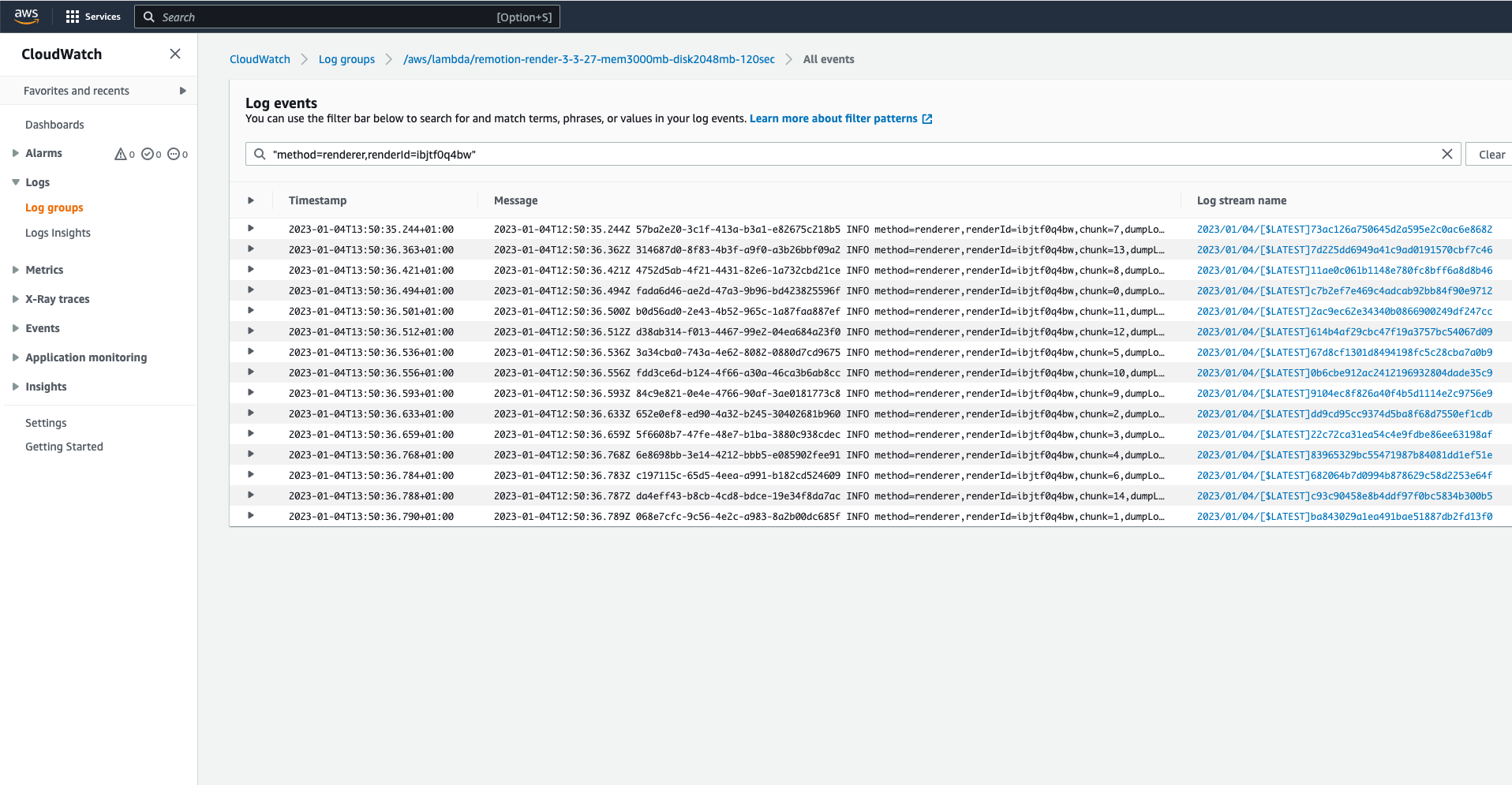
默认情况下,筛选器设置为:
🌐 By default, the filter is set to:
"method=renderer,renderId=[render-id]"查找特定块的日志
🌐 Find the logs of a specific chunk
调整查询以查找特定块的日志:
🌐 Tweak the query to find the logs of a specific chunk:
method=renderer,renderId=[render-id],chunk=12例如,将找到第12块的日志流。如果你的视口足够大,你还会在摘要视图中立即看到块编号。
🌐 will for example find the log stream of chunk 12. If your viewport is big enough, you will also see the chunk numbers in the summary view straight away.
点击 Log stream name 列中的蓝色链接以打开日志流。如果看不到任何蓝色链接,请点击“显示”,然后选择“按详细信息查看列”。
🌐 Click the blue link in the Log stream name column to open the log stream. If you don't see any blue links, click "Display", then select "View in columns with details".
在日志流中,你将看到来自 Remotion 的调试日志以及你 React 代码中的任何 console.log 语句。
🌐 In the logstream, you will see debug logging from Remotion as well as any console.log statements from your React code.
查找主函数的日志
🌐 Find the logs of the main function
调整查询以查找主函数的日志:
🌐 Tweak the query to find the logs of the main function:
method=launch,renderId=[render-id]你应该会得到一个结果。点击 Log stream name 列中的蓝色链接以打开日志流。如果你看不到任何蓝色链接,点击“显示”,然后选择“以详细信息列查看”。
🌐 You should get one result.
Click the blue link in the Log stream name column to open the log stream. If you don't see any blue links, click "Display", then select "View in columns with details".
找到失败的块
🌐 Finding the chunk that failed
要查找哪些块渲染失败,在通过 CLI 渲染时向 Lambda 渲染添加 --log=verbose。
查找指向 progress.json 的链接。
使用 renderMediaOnLambda() 时,你将在返回值中获得一个 folderInS3Console 字段,你可以打开它并在其中找到 progress.json 文件。
🌐 To find which chunks failed to render, add --log=verbose to the Lambda render while rendering via the CLI.
Look for the link pointing to progress.json.
When using renderMediaOnLambda(), you will get a folderInS3Console field in the return value, which you can open and locate the progress.json file therein.
在 progress.json 文件中,你会找到一个 chunks 数组。
缺失的块是那些未能渲染的块。
🌐 Within the progress.json file, you will find a chunks array.
The chunks that are missing are the ones that failed to render.
在你确定了缺失的块之后,检查该块的日志以查找错误原因。
🌐 After you've identified which chunks are missing, inspect the logs for that chunk to find the cause of the error.
增加超时
🌐 Increasing the timeout
请注意,Remotion 中有两种类型的超时:
🌐 Note that two types of timeouts come into play in Remotion:
delayRender()超时。这个超时是使用--timeout调用npx remotion lambda render时定义的,或者在调用renderMediaOnLambda()时使用timeoutInMilliseconds定义的。- Lambda 函数超时。这是在调用
npx remotion lambda functions deploy时使用--timeout定义的超时,或在调用deployFunction()时使用timeoutInSeconds定义的超时。
报告问题
🌐 Reporting an issue
🌐 You may report an issue on GitHub and Discord.
要共享可重现的渲染,请共享位于失败渲染的 S3 文件夹下 renders/[render-id]/progress.json 中的 progress.json。
🌐 To share a reproducible render, share the progress.json that lies in the S3 folder of the failed render under renders/[render-id]/progress.json.
如果你使用renderMediaOnLambda(),此功能将返回一个链接folderInS3Console,指向 S3 控制台中的正确位置。
🌐 If you use renderMediaOnLambda(), this function returns a link folderInS3Console pointing you to the right location in the S3 console.
如果你使用 npx remotion lambda render,添加 --log=verbose 以在 S3 控制台中打印文件的链接。
🌐 If you use npx remotion lambda render, add --log=verbose to print the link to the file in the S3 console.
如果你在报告中包含 CloudWatch 日志,请发布完整日志(点击“加载更多消息”,直到没有更多消息可加载)。
🌐 If you include CloudWatch logs in your report, post the full logs (click "Load more messages" until there are no more to load.)
另请参阅
🌐 See also