开始编辑
要启动编辑环境,请运行
🌐 To start the editing environment, run
bun run dev这将启动开发服务器,并在新窗口中打开一个 Remotion Studio 实例。
🌐 This will start the development server and open a Remotion Studio instance in a new window.
创建新作品
🌐 Create a new composition
合成是一段你可以编辑和渲染的视频。
🌐 A composition is a video that you can edit and render.
在左侧边栏,通过右键点击 empty 合成并选择 Duplicate 来创建一个新的合成,并为其指定一个 ID。
ID 应该与存放你视频的 public 子文件夹的名称相同。
示例:如果你将录制内容存放在 public/hello-world,ID 应该是 hello-world。
🌐 In the left sidebar, create a new composition by right-clicking the empty composition and selecting Duplicate and give it an ID.
The ID should be the same as the name of the subfolder of public where you store your videos.
Example: If you store your recordings in public/hello-world, the ID should be hello-world.
向作品中添加新场景
🌐 Add new scenes to the composition
打开右侧边栏。默认情况下没有任何场景。
点击 + 按钮添加新场景。
🌐 Open the right sidebar. By default there are no scenes.
Click the + button to add a new scene.
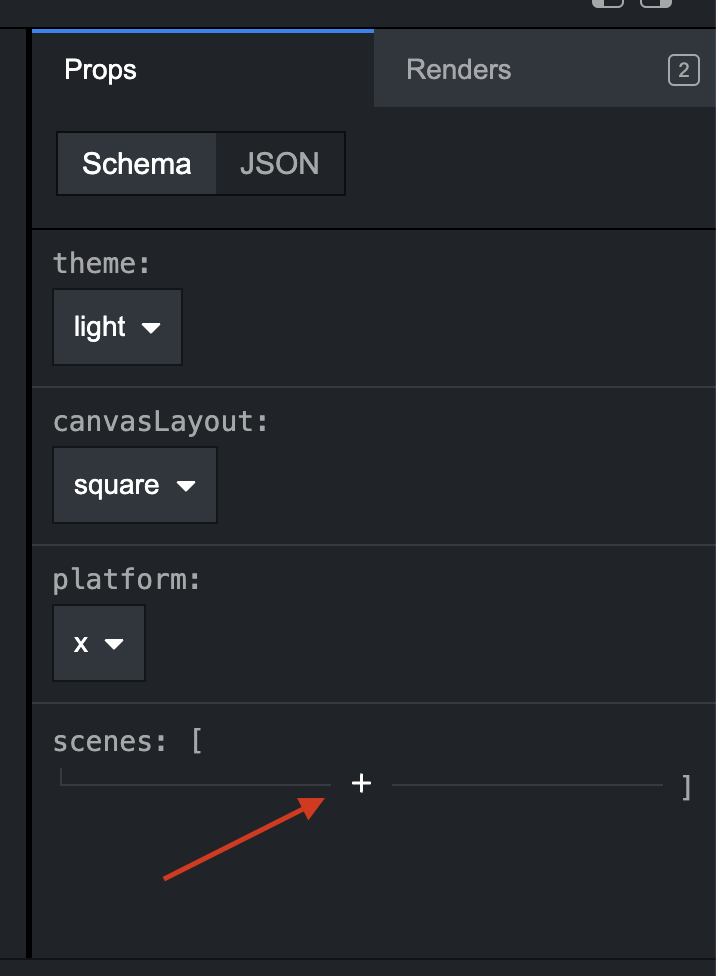
默认情况下,它将添加一个视频场景,这将使用 public/[composition-id] 文件夹中的第一个录制内容。
🌐 By default, it will add a video scene, which will consume the first recording in the public/[composition-id] folder.
你也可以将场景类型切换为其他类型,比如 endcard 或 title。
每种场景类型都有其自己的设置,你可以在右侧边栏进行配置。
🌐 You can also switch the scene type to something different like endcard or title.
Each scene type has its own settings which you can configure in the right sidebar.
要保存场景,请点击磁盘图标或使用 Ctrl+S / Cmd+S。
🌐 To save the scenes, click the disk icon or use Ctrl+S / Cmd+S.