visualControl()v4.0.292
预览功能: 已知一些问题,并已记录在此 issue 下。
在 Remotion Studio 的右侧边栏中创建一个控件,允许你更改一个值。
🌐 Creates a control in the right sidebar of the Remotion Studio that allows you to change a value.
如果你有一个硬编码的常量,并且想快速找到其最优值,这会很有用。
🌐 Useful for if you have a hardcoded constant that you want to quickly find the optimal value for.
示例
🌐 Example
考虑你有一个值 rotation,你想找到它的最优值:
🌐 Consider you have a value rotation that you want to find the optimal value for:
A simple compositionimport {useVideoConfig } from 'remotion'; constMyComp :React .FC = () => { constrotation = 180; return <div style ={{rotate : `${rotation }deg`}}>Hello</div >; };
与其在代码中更改 rotation 的值,你可以在 Remotion Studio 的右侧边栏创建一个控件来更改该值:
🌐 Instead of changing the value of rotation in the code, you can create a control in the right sidebar of the Remotion Studio that allows you to change the value:
Creating a visual control with the name 'rotation'import {visualControl } from '@remotion/studio'; constMyComp :React .FC = () => { constrotation =visualControl ('rotation', 180); return <div style ={{rotate : `${rotation }deg`}}>Hello</div >; };
现在,在 Remotion Studio 的右侧栏中,你会看到一个名为 rotation 的控件和一个用于更改数值的滑块。
🌐 Now, in the right sidebar of the Remotion Studio, you will see a control with the name rotation and a slider to change the value.
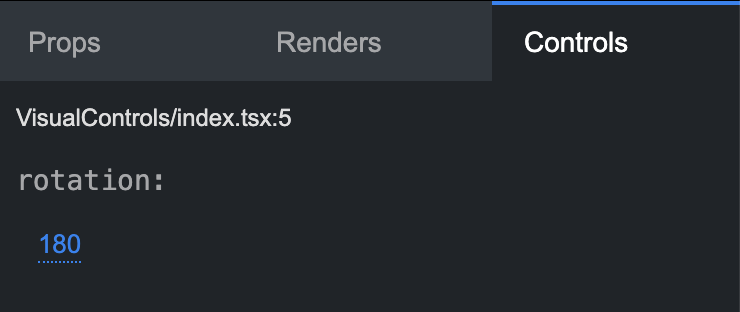
现在你可以随意更改数值,直到找到最佳数值为止。
🌐 Now you can change the value as you please, until you have found the optimal value.
一旦你对该值满意,可以通过点击右侧边栏的保存按钮将其保存回代码中。
🌐 Once you are happy with the value, you can save it back to the code by clicking the save button in the right sidebar.
定义一个模式
🌐 Defining a schema
只有原始值(string 和 number)会自动推断控件的类型。
🌐 Only primitive values (string and number) automatically infer the type of the control.
如果你想定义一个更复杂的模式,你可以通过将一个 Zod 模式作为第三个参数传递来实现。
🌐 If you want to define a more complex schema, you can do so by passing a Zod schema as the third argument.
Editing an objectimport {z } from 'zod'; constdata =visualControl ( 'my-data', {rotation : 180,text : 'Hello', },z .object ({rotation :z .number (),text :z .string (), }), );
请参见:视觉编辑
🌐 See: Visual Editing
Editing a colorimport {visualControl } from '@remotion/studio'; import {zColor } from '@remotion/zod-types'; constcolor =visualControl ('my-color', '#fff',zColor ());
请参见:“zColor()”
🌐 See: zColor()
Editing a matriximport {visualControl } from '@remotion/studio'; import {zMatrix } from '@remotion/zod-types'; constmatrix =visualControl ('my-matrix', [1, 2, 3, 4],zMatrix ());
请参见:“zMatrix()”
🌐 See: zMatrix()
何时使用
🌐 When to use
- 如果你想创建配置选项,请使用 Props 编辑器。
- 如果你想快速找到硬编码常量的最优值,请使用
visualControl()。
重要的是知道
🌐 Important to know
保存功能仅在visualControl() 函数的第一个参数是静态时才有效,因为对源文件进行了静态分析。以下情况将不起作用:
❌ This is not possible// ❌ Not possible to use string interpolation constname = 'my-data'; constdata =visualControl (`rotation-${name }`, 180); // ❌ Not possible to use a variable constidOutside = 'rotation-my-data'; constdataOutside =visualControl (idOutside , 180);
另请参阅
🌐 See also